In the digital age, editing PDF documents has become an essential skill for professionals and students alike. Whether you're annotating a report, filling out forms, or making collaborative changes, the ability to edit PDFs seamlessly can significantly enhance productivity. However, as with any technology, users often encounter obstacles along the way. One of the most frustrating experiences is dealing with error messages during editing.
Understanding error messages during editing is crucial for a smooth workflow. Imagine you're in the middle of an important project, and suddenly an error message pops up, halting your progress. These messages can range from minor annoyances to major roadblocks, leaving you feeling confused and frustrated. But fear not! In this article, we will guide you through the maze of error messages that may arise while using online PDF editing tools. By the end of this read, you'll be equipped with the knowledge to not only decipher these messages but also implement effective solutions. Join us as we explore common error messages encountered during PDF editing, their potential causes, and practical strategies to overcome them.
With a clearer understanding of these issues, you can navigate your editing tasks with confidence and ease. As the digital landscape continues to evolve, the reliance on online PDF editing tools has grown significantly. These tools provide remarkable convenience, allowing users to edit, annotate, and manipulate PDF documents from anywhere with an internet connection. However, along with this convenience comes the potential for encountering error messages that can be frustrating and confusing. Understanding these error messages is crucial for enhancing user experience, as they often contain important information regarding the issues at hand. One of the most common types of error messages users may face during online PDF editing relates to file format issues.
Many editing tools only support specific file formats, and attempting to upload a document in an unsupported format can trigger a notification. For instance, if a user tries to upload a .docx file instead of a .pdf file, the tool may display a message stating that the file type is not supported. To troubleshoot this type of error, users should always check the supported file formats listed on the editing tool's website and convert their documents accordingly. An additional common issue is upload failures, which can stem from various factors such as poor internet connectivity or server errors. If a user experiences an upload failure, they may encounter a message indicating that the upload was unsuccessful.
In such cases, it is essential to ensure that the internet connection is stable and that the file size does not exceed any limitations set by the service. If problems persist, refreshing the browser or trying a different browser may help resolve the issue.
Security warnings
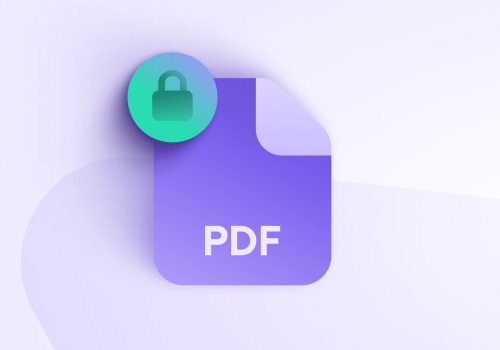
are another category of error messages that users might encounter while editing PDFs online. These warnings often appear when users attempt to upload password-protected PDF files. For example, if a user tries to edit a document that requires a password for access, the editing tool may notify them that it cannot open the file without the correct password.To troubleshoot this scenario, users should ensure they have access to the password and remove any restrictions on the document before attempting to upload it again. Another significant concern when using online PDF editors is privacy and security. Users might worry about how their data is being handled and whether their documents are secure. Error messages related to security can arise when a tool identifies potential threats or unauthorized access attempts. Users should always verify the reliability of online services by checking for HTTPS in the URL, reading user reviews, and looking for certifications or security features offered by the service. In conclusion, while online PDF editing tools offer incredible convenience, users are likely to encounter various error messages during their experience.
By understanding common errors such as file format issues, upload failures, and security warnings, users can troubleshoot effectively and enhance their overall experience. It is essential to approach these messages with an informed perspective, ensuring that one takes proactive steps to address each issue while maintaining awareness of privacy and security concerns.
Troubleshooting Techniques
When using online PDF editing tools, encountering error messages can be frustrating. However, understanding how to troubleshoot these issues can significantly improve your editing experience. Here are some practical solutions to common errors:1.Reducing File Size: Large PDF files can lead to errors during the uploading or editing process.If you receive an error message related to file size, consider compressing the PDF. There are various online tools available that allow you to reduce the file size without compromising quality.
2.Converting File Types:
Sometimes, the format of your PDF may not be compatible with the editing tool you are using. If you encounter an error, try converting your PDF into a different format, such as a Word document or an image file. After editing, you can convert it back to PDF.3.Checking Internet Connectivity:
Many error messages are related to poor internet connectivity.A stable connection is essential for online PDF editing tools to function correctly. Ensure that your internet connection is strong and stable. If you are experiencing connectivity issues, try resetting your router or switching to a wired connection. By implementing these troubleshooting techniques, users can effectively resolve common error messages and enhance their overall experience with online PDF editing tools.
Common Error Messages Explained
When using online PDF editing tools, encountering error messages is a common experience. Understanding these messages can significantly improve your editing process.Here are some of the most frequent error messages you might come across:File Too Large: This error message appears when the PDF file you are trying to upload exceeds the size limit set by the editing tool. Most online services have a maximum file size restriction to ensure smooth operation and quick processing times. To resolve this issue, consider compressing your PDF file using various online compression tools or splitting the document into smaller sections before attempting to upload it again.
Unsupported File Type
: If you receive this error, it indicates that the file format you are trying to edit is not compatible with the online PDF editor. Many tools only accept specific file types, such as .pdf, .docx, or .jpg.To fix this, ensure that your file is in a supported format. If necessary, convert your document using file conversion software or online services that can change your files into an acceptable format.
Failed to Save Changes
: This message can be particularly frustrating as it means that modifications you made to your PDF were not saved successfully. This could occur due to connectivity issues, timeouts, or server errors. To troubleshoot this issue, first check your internet connection and try saving your changes again.If the problem persists, consider downloading a local copy of your edited document or using a different browser or device to see if that resolves the issue. By familiarizing yourself with these common error messages and their solutions, you can navigate the world of online PDF editing more effectively, making your editing experience smoother and more productive.
Ensuring Document Security
In an era where digital documents are increasingly shared and edited online, ensuring document security has become paramount for users who handle sensitive information. Online PDF editors provide a convenient platform for editing and collaborating on documents, but they also pose potential risks if proper security measures are not in place. To protect sensitive information while using these tools, users should look for several key features. Firstly, ensure that the online PDF editor utilizes encryption during data transmission. This means that any information you upload is securely encrypted, preventing unauthorized access during the transfer process. Additionally, opt for tools that offer password protection for edited documents.This feature allows users to set a password that must be entered to view or edit the file, adding an extra layer of security against unauthorized access. Another important aspect is the editor's privacy policy. Users should review the policy to understand how their data will be handled and whether the service provider retains any copies of the documents after editing. Ideally, choose tools that commit to not storing user files after the session ends. Furthermore, consider online editors that support secure cloud storage. These tools often have robust security measures in place, such as two-factor authentication and regular security audits, ensuring that your documents are stored safely and securely. Lastly, it’s advisable to use online PDF editors that comply with industry standards and regulations, such as GDPR or HIPAA, especially when handling sensitive personal or health-related information.
By being diligent about the security features of online PDF editing tools, users can confidently edit their documents without compromising their sensitive information. In conclusion, navigating error messages during online PDF editing can seem daunting, but it is essential to remember that these messages serve as helpful indicators designed to improve your editing experience. By understanding the common error messages discussed in this article, such as file format issues, permission errors, and connection problems, you are better equipped to troubleshoot effectively and maintain document security. Embrace these challenges as opportunities for growth in your editing skills. With each error message decoded and resolved, you pave the way for a smoother and more efficient editing process. So, the next time you encounter an error, don’t be discouraged; instead, use it as a stepping stone towards mastering online PDF editing.